Modern devices record extremely high-quality videos. Smartphones, cameras, and editing software now produce 4K and even 8K videos, which means a single recording can easily be several gigabytes in size. While this quality is great for viewing and editing, it also creates a new challenge: how to transfer large video files between devices quickly and reliably.
Whether you are sending videos from your laptop to a friend, sharing footage with a client, or transferring large recordings between devices, many traditional file sharing methods struggle with large file sizes.
In this guide, you will learn practical ways to transfer large video files between devices and how to do it efficiently.
Step-by-Step Guide to Transfer Large Video Files Between Devices
One of the easiest ways to transfer large videos online is by using a direct device-to-device transfer tool such as SendVideo.Online. The platform is designed to help users send large videos quickly without complicated setup.
1. Open the Transfer Page
Start by opening the SendVideo.Online transfer page in your browser.
The platform works directly from the browser, so there is no need to install software or create an account before sending files. Login required only for pro features.
2. Select the Video File
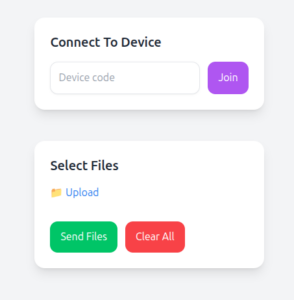
Click the upload button and select the video file you want to transfer from your device.
You can choose large files or multiple videos depending on your needs.
3. Enter Basic Details
To help the receiver identify the sender, enter basic details such as:
- your name
- optional remarks
These details help the receiver confirm who is sending the files.

4. Generate a Transfer Link
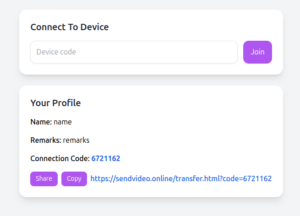
After selecting your files and entering details, the system generates:
- a temporary transfer link
- a connection ID
Both options can be used to establish the connection between devices.
Send the transfer link to the receiver using any communication method such as messaging apps, email, or chat platforms.
If sharing links is not convenient, you can simply send the connection ID.
6. Receiver Connects and Accepts the Transfer
The receiver opens the link or enters the connection ID on the transfer page.
Before the transfer begins, the receiver must accept the file request. If the receiver rejects the request, the transfer will not start.
7. Video Transfer Begins
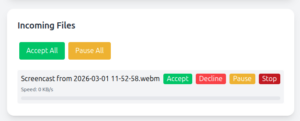
Once the receiver accepts the request, the video begins transferring directly between the devices.
Both users can monitor the transfer progress in real time.
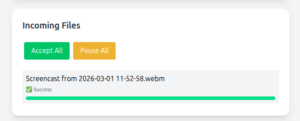
Once verification finishes, both users will see a success message indicating that the transfer has completed successfully.
Also see – How to Send Large Video Files Online (Step-by-Step Guide)
Tips for Transferring Large Videos Faster
Transferring large videos can take time depending on file size and internet speed. The following tips can help improve the transfer process.
Use a Stable Internet Connection
A stable connection helps maintain consistent transfer speed and prevents interruptions during large transfers.
No Need to Compress Videos
Many services require you to compress large videos before sending them. Compression reduces video quality.
With SendVideo.Online, you can send large videos without compressing them, helping preserve the original quality.
Send Very Large Files Individually
If you have multiple very large videos, sending them individually can sometimes improve transfer reliability and make it easier to manage progress.
Use Pause and Resume to Prioritize Important Files
If you are sending multiple files, you can pause the transfer and resume it later. This allows you to focus on sending the most important files first when needed.
Send Project Files as a ZIP Archive
Video projects sometimes contain thousands of small cache files and folders. Sending them individually can be inefficient.
Compressing project folders into a ZIP archive makes the transfer easier and keeps all related files organized.
Keep the Transfer Tab Open
Since the transfer runs directly in your browser, avoid closing the tab until the transfer completes.
Advantages of Direct Device-to-Device Video Transfer
Direct file transfer offers several benefits compared to traditional sharing methods.
No File Size Restrictions
Large video files can be transferred without worrying about typical email or messaging limits.
Faster Transfers
Direct connections allow files to move between devices without requiring the file to be uploaded to a cloud server first.
Greater Privacy
Files are transferred directly between devices rather than being permanently stored on servers.
Reliable File Delivery
Verification ensures that the received file matches the original file sent by the sender.
Flexible Transfer Controls
Users can pause, resume, or stop transfers whenever necessary.
Two-Way File Sharing
Once devices are connected, both users can send files to each other during the same transfer session.
- 1 Step-by-Step Guide to Transfer Large Video Files Between Devices
- 2 1. Open the Transfer Page
- 3 2. Select the Video File
- 4 3. Enter Basic Details
- 5 4. Generate a Transfer Link
- 6 5. Share the Link or Connection ID
- 7 6. Receiver Connects and Accepts the Transfer
- 8 7. Video Transfer Begins
- 9 Tips for Transferring Large Videos Faster
- 10 Use a Stable Internet Connection
- 11 No Need to Compress Videos
- 12 Send Very Large Files Individually
- 13 Use Pause and Resume to Prioritize Important Files
- 14 Send Project Files as a ZIP Archive
- 15 Keep the Transfer Tab Open
- 16 Advantages of Direct Device-to-Device Video Transfer
- 17 No File Size Restrictions
- 18 Faster Transfers
- 19 Greater Privacy
- 20 Reliable File Delivery
- 21 Flexible Transfer Controls
- 22 Two-Way File Sharing