Sending large video files can be frustrating. Modern smartphones, cameras, and editing software produce high-quality videos that can easily reach several gigabytes in size. Unfortunately, most common sharing methods like email or messaging apps have strict file size limits.
If you need to send a large video quickly without compressing it or splitting it into parts, using a direct online transfer tool is often the easiest solution.
SendVideo.Online makes it simple to transfer large video files directly between devices without complicated setup or registration. Below is a step-by-step guide to help you send your video online to other device in a fastest way possible.
Step-by-Step Guide
1. Open the Transfer Page
Start by opening the sendvideo.online transfer page in your browser.
The platform works directly from the browser, so you do not need to install any software or create an account to begin sending files.
This makes it ideal for quick video transfers when you need to share a large video immediately.
2. Click the Upload Button and Select Your Video
Click the upload button and choose the video files from your device.
You can select long video files or multiple files depending on what you need to share. Since the transfer happens directly between devices, you do not have to worry about typical upload limits that many services impose.
This makes the process suitable for:
- high-resolution videos
- long recordings
- large project files
- raw camera footage
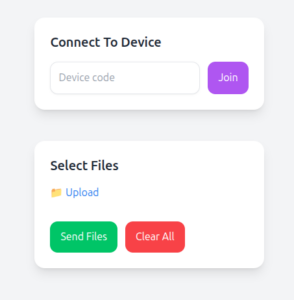
3. Enter Basic Details
Before generating the transfer link, you will be asked to enter basic identification details.
These usually include:
- your name
- optional remarks
These details help the receiver recognize who is sending the files. Only minimal information is required so that the transfer process stays simple and privacy-friendly.

4. Generate a Temporary Transfer Link
After selecting your files and entering the details, the system will generate a temporary transfer link.
You will also receive a connection ID that can be used to establish the connection between devices.
This gives you two ways to connect with the receiver.
You can share the transfer link with the receiver through:
- messaging apps
- chat platforms
- collaboration tools
If sharing links is not convenient, you can simply send the connection ID. The receiver can use this code on the transfer page to connect with your device.
This flexible connection method makes it easy to start a transfer from almost anywhere.
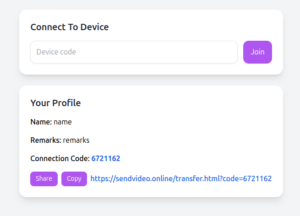
6. Receiver Opens the Link or Enters the Connection ID
The receiver opens the shared transfer link or enters the connection ID on the transfer page.
This establishes a secure connection between the sender and receiver devices.
7. Receiver Accepts the File Transfer
Before the transfer begins, the receiver will see a request to accept the files.
This step is important because it ensures that files are only transferred when the receiver approves them.
If the receiver rejects the request, the transfer will not start.
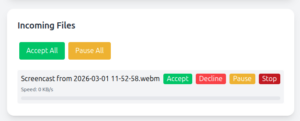
8. Video Transfer Starts Between Devices
Once the receiver accepts the request, the video transfer begins.
The file moves directly between the sender’s device and the receiver’s device. Both users can see the transfer progress in real time. They can see the transfer speed also.
Because the connection is direct, this method avoids many of the delays that occur when files must first be uploaded to a server and then downloaded again. But speed is completely depends on both devices hardware speed and internet connection speeds.
9. Use Pause and Resume When Needed
During the transfer, both the sender and receiver can control the process.
Available controls include:
- pause transfer
- resume transfer
- stop transfer
These controls are useful if your internet connection becomes unstable or if you need to temporarily pause the transfer. With these options help you can choose which files to send first and which one after some time.
10. Integrity Verification After Transfer
After the video finishes downloading, the system auto verifies the file to ensure that it was received correctly. This verification process confirms that the received video is exactly the same as the original file that was sent. Reliable transfer verification helps prevent corrupted or incomplete files. Otherwise corrupted files wont open properly after download.
11. Transfer Completed Successfully
Once verification is complete, both users will see a success message indicating that the transfer finished successfully.
At this point, the receiver has the full video file ready to use.
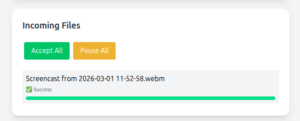
12. Selecting other files
Sendvideo online allows users on both sides to add more files after the connection is established, so both parties can send more files freely once the connection is established.
For example a content creator is sending vidio file to editor, he can add more videos after connecting to receiver device. In the same way with the same connection the receiver also can share his files with the sender.
Tips for Sending Large Videos Faster
Sending big video files can take time depending on your internet connection. However, a few simple practices can help speed up the process.
Use a Stable Internet Connection
A stable connection helps maintain a consistent transfer speed and reduces interruptions.
Avoid Closing the Browser Tab
Since the transfer runs directly in the browser, closing the tab will stop the transfer. Keep the tab open until the process completes.
Pause During Network Instability
If your internet connection becomes unstable, pausing the transfer and resuming it later can help maintain reliability.
Reduce Network Congestion
Transfers may complete faster when fewer devices are using the same internet connection.
Keep Both Devices Connected
Ensure both devices remain connected to the internet during the entire transfer process.
Security and Privacy When Sending Videos
When sharing large files online, security and privacy are important considerations.
Receiver Approval Before Transfer
The receiver must accept the transfer request before any file transmission begins. This prevents unwanted transfers.
Temporary Transfer Links
Temporary links are created specifically for each transfer session, helping keep the connection secure.
Connection ID Protection
When a receiver connects using a connection ID, the connection becomes exclusive to that session. Other devices cannot join the transfer once the connection is established.
Direct Device-to-Device Transfer
Files are transferred directly between devices instead of being permanently stored on servers. This helps protect user privacy and reduces the risk of unauthorized access.
File Integrity Verification
After the transfer finishes, the file is verified to ensure that the received file matches the original file exactly.
Advantages of Direct Video Transfer
Direct video transfer has several advantages compared to traditional file sharing methods like cloud storage sharing. you can see full comparison here cloud storage sharing vs sendvideo.online
No File Size Restrictions
Large videos can be transferred without the size limitations that email and messaging platforms typically impose.
Faster Transfers
Since files move directly between devices, the process avoids the delay of uploading and downloading from cloud storage.
Greater Privacy
Direct transfers reduce the need to store files on third-party servers.
Reliable File Delivery
Verification ensures that the transferred video remains complete and unchanged.
Flexible Transfer Control
Pause, resume, and stop controls allow users to manage transfers based on their internet conditions.
Two-Way File Sharing
Once two devices are connected, both users can send files to each other during the session.
Different Ways to Send Large Video Files
If you want to use other methods, there are several ways people commonly share large video files online. Each method has its own advantages and limitations depending on file size, internet speed, and privacy needs.
Sending Videos Through Email
Email is one of the most common ways to share files. Popular email services like Gmail, Outlook, and Yahoo Mail allow users to attach files directly to messages.
However, most email platforms have strict attachment size limits. For example, many services allow attachments of around 20–25 MB. This makes email suitable for small videos but not practical for large high-resolution files.
Using Cloud Storage Services
Cloud storage services allow users to upload large files and then share a download link with others. Some widely used platforms include Google Drive, Dropbox, OneDrive, and iCloud Drive.
These services work well for collaboration and file storage. However, the process usually requires uploading the entire video to the cloud first, which can take time for very large files. The receiver then needs to download the file again, adding another step to the process.
Using Messaging Applications
Messaging apps are another common way to send videos quickly. Popular apps such as WhatsApp, Telegram, Facebook Messenger, and Signal allow users to share videos directly in chats.
While convenient, these apps often compress videos or impose file size limits. Compression can reduce video quality, which may not be ideal when sharing professional or high-resolution footage.
Using External Storage Devices
External storage devices such as USB flash drives or portable hard drives can also be used to transfer large videos. These devices can store large amounts of data and do not depend on internet speed.
However, this method requires physical access to both devices, which may not be practical when the sender and receiver are in different locations.
Using Direct File Transfer Tools
Direct file transfer tools such as isftp.net, sendvideo, sendgb etc allow users to send large video files online by connecting devices and transferring files directly between them.
Unlike cloud storage services, this method does not require uploading the entire file to a remote server before the receiver downloads it. Instead, the video moves directly between the sender’s device and the receiver’s device.
This approach can be helpful when transferring very large videos, as it reduces unnecessary upload and download steps while allowing the transfer to start immediately once both devices are connected.
- 1 Step-by-Step Guide
- 2 1. Open the Transfer Page
- 3 2. Click the Upload Button and Select Your Video
- 4 3. Enter Basic Details
- 5 4. Generate a Temporary Transfer Link
- 6 5. Share the Link or Connection ID
- 7 6. Receiver Opens the Link or Enters the Connection ID
- 8 7. Receiver Accepts the File Transfer
- 9 8. Video Transfer Starts Between Devices
- 10 9. Use Pause and Resume When Needed
- 11 10. Integrity Verification After Transfer
- 12 11. Transfer Completed Successfully
- 13 12. Selecting other files
- 14 Tips for Sending Large Videos Faster
- 15 Use a Stable Internet Connection
- 16 Avoid Closing the Browser Tab
- 17 Pause During Network Instability
- 18 Reduce Network Congestion
- 19 Keep Both Devices Connected
- 20 Security and Privacy When Sending Videos
- 21 Receiver Approval Before Transfer
- 22 Temporary Transfer Links
- 23 Connection ID Protection
- 24 Direct Device-to-Device Transfer
- 25 File Integrity Verification
- 26 Advantages of Direct Video Transfer
- 27 No File Size Restrictions
- 28 Faster Transfers
- 29 Greater Privacy
- 30 Reliable File Delivery
- 31 Flexible Transfer Control
- 32 Two-Way File Sharing
- 33 Different Ways to Send Large Video Files
- 34 Sending Videos Through Email
- 35 Using Cloud Storage Services
- 36 Using Messaging Applications
- 37 Using External Storage Devices
- 38 Using Direct File Transfer Tools