Sharing videos has become a normal part of everyday communication. People send videos for personal memories, professional work, online collaboration, and creative projects. However, one common problem many users face is losing video quality during the sharing process.
Many popular platforms automatically compress videos to reduce file size. While this helps platforms save storage space and bandwidth, it can significantly reduce the original quality of the video. This means the receiver may see a lower resolution version with reduced clarity, detail, or audio quality.
If you want to send videos while preserving their original resolution and quality, it is important to choose the right method. This guide explains why videos lose quality and how you can send videos without compression or quality loss.
Why Videos Lose Quality When Sharing
Video quality often decreases during sharing because many platforms automatically modify the original file. These changes usually involve compression, resizing, or converting the file into a different format.
Video compression reduces the file size by removing certain visual details from the video. While this may make the file easier to upload or transmit, it can also lower the clarity of the video, especially when viewed on larger screens.
Large videos, especially those recorded in high resolution such as 4K, contain a large amount of data. Platforms that handle millions of uploads often compress these files to reduce storage requirements and speed up uploads. As a result, the original video quality is not preserved.
Common Ways Videos Lose Quality During Transfer
- Video Compression by Messaging Apps
- Automatic Resizing by Social Media Platforms
- File Conversion During Upload
- Low Bandwidth Upload Optimization
Best Ways to Send Videos Without Losing Quality
Using Direct Device-to-Device Transfer Tools
Direct transfer tools such as sendvideo.online allow two devices to connect and exchange files without compressing them.
Instead of uploading the file to a storage server first, these tools transfer video files directly from the sender’s device to the receiver’s device. Because the original file is transferred, the video quality remains exactly the same. Try sendvideo.online to transfer your video files without losing quality. No login required, No size limits. Login only form pro features.
Using Cloud Storage Services
Cloud storage services such as Google Drive, Dropbox, and OneDrive allow users to upload the original file and share a download link.
Since the receiver downloads the original file, the quality remains unchanged.
However, uploading large videos can take time, especially for very large files.
Using External Storage Devices
External devices such as USB flash drives or external hard drives allow users to move large video files without using the internet.
This method keeps the original video quality intact but requires physical access to both devices.
Step-by-Step Guide to Send a Video Without Losing Quality Using SendVideo.Online
Open the Transfer Page
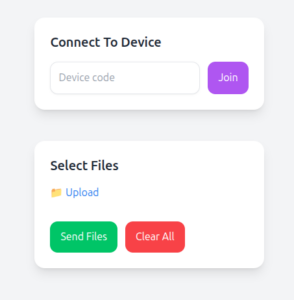
Start by opening the SendVideo.Online transfer page in your browser. The platform works directly in the browser, so no installation or account creation is required.
Select the Video File
Click the upload button and select the video file you want to send. You can choose the original file directly from your device without modifying it.
Enter Basic Details
Enter basic information such as your name and optional remarks. This helps the receiver identify the sender.
Generate a Transfer Link
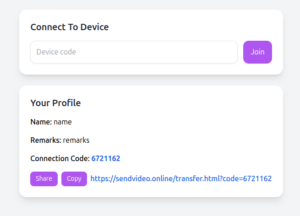
After selecting the file and entering details, the system generates a temporary transfer link and a connection ID.
Send the transfer link or connection ID to the receiver using email, messaging apps, or any other communication method.
Receiver Accepts the Transfer
The receiver opens the link or enters the connection ID and accepts the transfer request before the file transmission begins.
Video Transfers Directly Between Devices
Once accepted, the video starts transferring directly between the two devices. Because the original file is transferred, no compression occurs.
File Integrity Verification After Transfer
After the transfer finishes, the system verifies the file to ensure the received video is exactly the same as the original file.
Transfer Completed Successfully
Once verification is complete, both users will see a success message indicating that the video transfer finished successfully.

Tips to Preserve Video Quality During File Transfer
Avoid Video Compression
Whenever possible, send the original video file instead of compressed versions.
Send the Original File Format
Keeping the original file format ensures that the video remains exactly as it was recorded or exported.
Use a Stable Internet Connection
A stable internet connection helps ensure smooth transfers, especially for large videos.
Send Large Videos Individually
If you have multiple large videos, sending them individually can help maintain reliability and improve transfer management.
Archive Project Files When Necessary
If a video project contains many related files, compressing them into a ZIP archive helps organize the transfer and keeps all files together.
Advantages of Sending Videos Without Compression
Preserves Original Video Quality
The video remains exactly the same as the original file without losing visual detail.
Maintains Full Resolution
The receiver gets the full resolution video, including 4K or higher quality if available.
Keeps Audio Quality Intact
Original audio tracks and sound quality remain unchanged.
Ensures Accurate File Delivery
File verification processes help confirm that the received video matches the original file completely.
- 1 Why Videos Lose Quality When Sharing
- 2 Common Ways Videos Lose Quality During Transfer
- 3 Best Ways to Send Videos Without Losing Quality
- 4 Using Direct Device-to-Device Transfer Tools
- 5 Using Cloud Storage Services
- 6 Using External Storage Devices
- 7 Step-by-Step Guide to Send a Video Without Losing Quality Using SendVideo.Online
- 8 Open the Transfer Page
- 9 Select the Video File
- 10 Enter Basic Details
- 11 Generate a Transfer Link
- 12 Share the Link With the Receiver
- 13 Receiver Accepts the Transfer
- 14 Video Transfers Directly Between Devices
- 15 File Integrity Verification After Transfer
- 16 Transfer Completed Successfully
- 17 Tips to Preserve Video Quality During File Transfer
- 18 Avoid Video Compression
- 19 Send the Original File Format
- 20 Use a Stable Internet Connection
- 21 Send Large Videos Individually
- 22 Archive Project Files When Necessary
- 23 Advantages of Sending Videos Without Compression
- 24 Preserves Original Video Quality
- 25 Maintains Full Resolution
- 26 Keeps Audio Quality Intact
- 27 Ensures Accurate File Delivery